
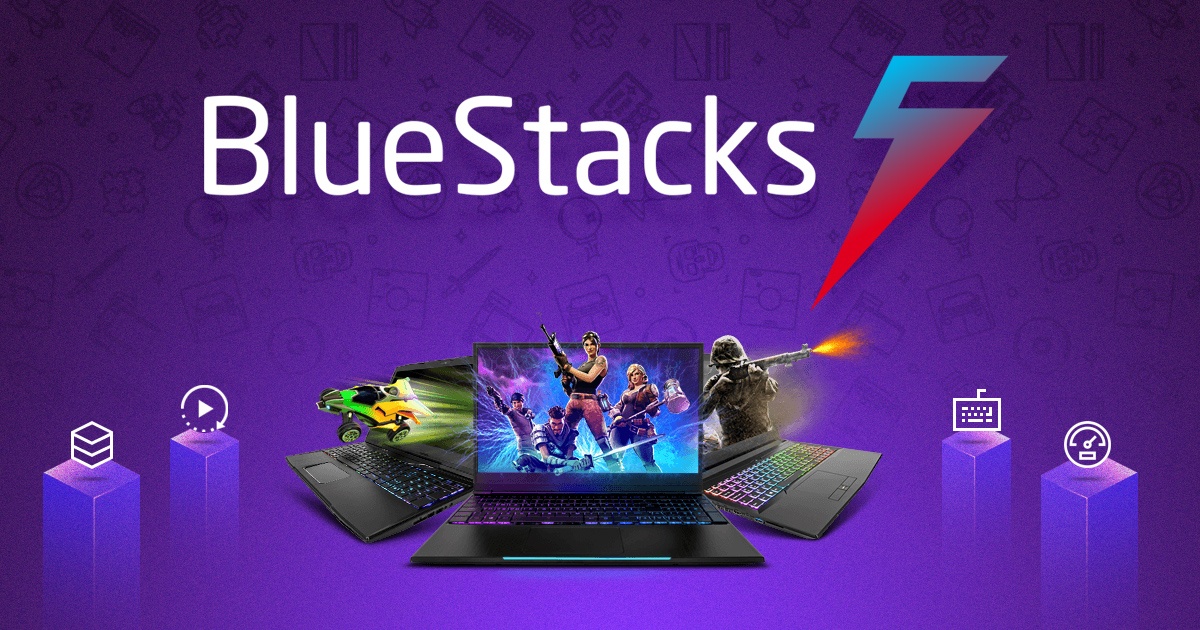
Do you want to use your favorite Android apps on your computer? Bluestacks can help. It is a tool that lets you run Android apps on Windows or Mac. This way, you can enjoy apps on a bigger screen and with a keyboard and mouse.
What is Bluestacks?
Bluestacks is a software called an Android emulator. It copies how Android works. You can use it to open apps from the Google Play Store. It works like an Android phone inside your computer.
The main idea is to let you use mobile apps without a phone. You can play games, chat, or use any app made for Android. It is easy to install and free to use.
Why Use Bluestacks?
There are many reasons people use Bluestacks. Here are a few:
- You want to play mobile games on a bigger screen.
- You prefer using a keyboard and mouse instead of a phone screen.
- You need to use an app that is only on Android.
- You want to use apps while working on your computer.
Bluestacks makes it easy to do these things. It works well for beginners and advanced users.
How to Download and Install Bluestacks
Getting Bluestacks is simple. Follow these easy steps:
- Go to the official Bluestacks website.
- Click on the download button for Windows or Mac.
- Open the downloaded file to start the installation.
- Follow the instructions on the screen.
- Wait for the installation to finish.
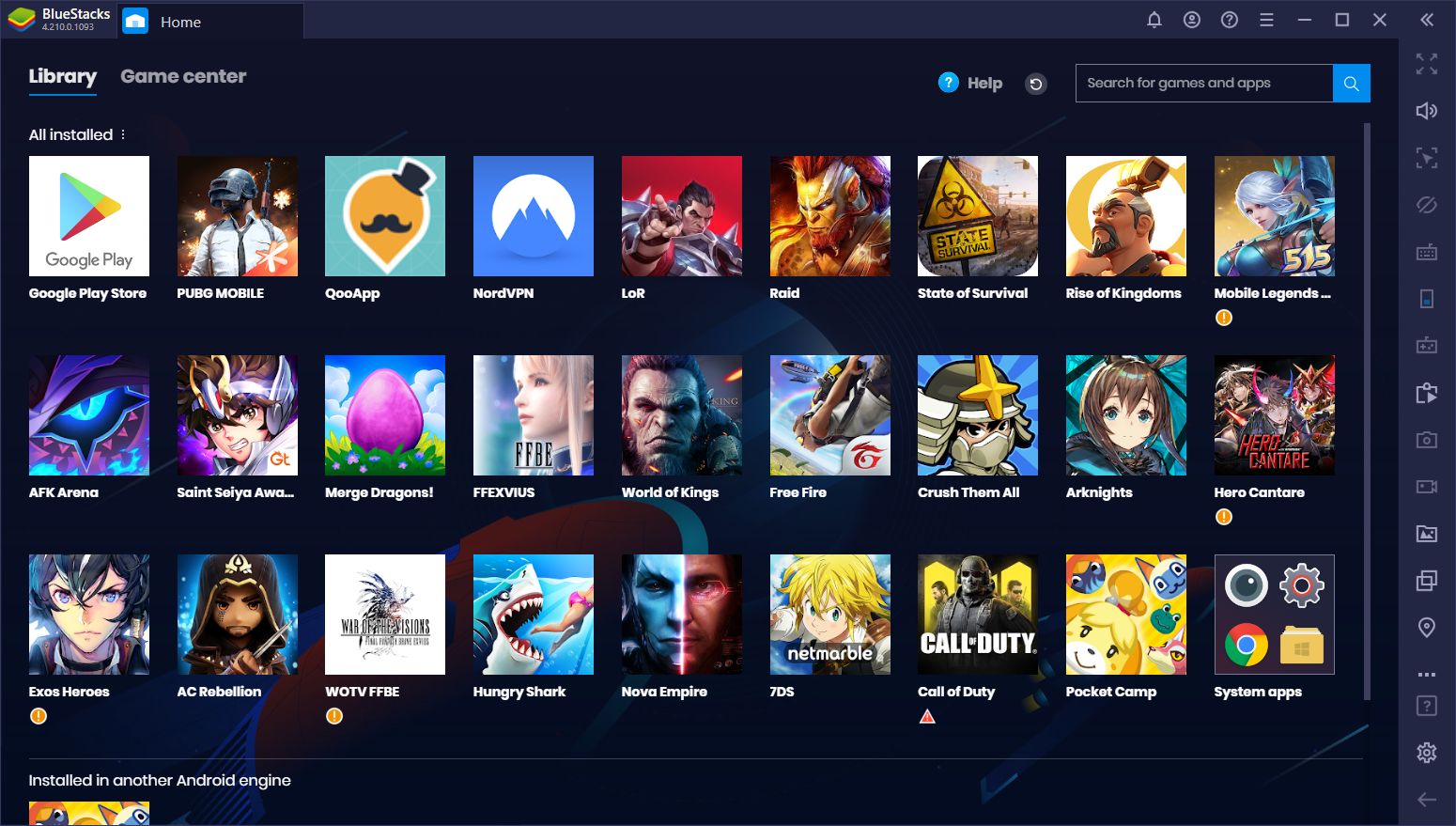
After installation, open Bluestacks. You will see an Android-like screen. Sign in with your Google account. This lets you access the Play Store and apps.
How to Use Bluestacks
Using Bluestacks is easy. Here is what you can do:
- Open the Google Play Store app.
- Search for the app or game you want.
- Click to install the app.
- Open the app from Bluestacks home screen.
You can use your keyboard and mouse to control the app. Bluestacks also has tools to help with gaming. For example, you can map keyboard keys to game buttons.
Features of Bluestacks
Bluestacks offers many features. Some are:
| Feature | Description |
|---|---|
| Multi-instance | Run multiple apps or games at the same time. |
| Keyboard Mapping | Use keyboard and mouse controls for games. |
| High Performance | Runs apps smoothly with good speed. |
| Google Play Store Access | Download any app from the Play Store. |
| Screen Recording | Record your app or game screen easily. |
These features make Bluestacks popular. It is useful for both work and play.
System Requirements for Bluestacks
Before installing Bluestacks, check if your computer is ready. Here are the basic needs:
- Operating System: Windows 7 or later, Mac OS Sierra or later.
- Processor: Intel or AMD processor.
- RAM: At least 4 GB (8 GB is better).
- Storage: 5 GB free space or more.
- Graphics: Updated graphics drivers.
If your computer meets these, Bluestacks will run fine. For best results, close other programs while using Bluestacks.
Tips to Use Bluestacks Smoothly
To get the best experience, try these tips:
- Keep Bluestacks updated to the latest version.
- Update your graphics drivers regularly.
- Use a stable internet connection for downloading apps.
- Close unnecessary apps on your PC to save memory.
- Adjust Bluestacks settings for better performance.
These simple actions help Bluestacks run faster and smoother.
Common Uses of Bluestacks
People use Bluestacks for many reasons. Here are common uses:
- Playing Android games: Enjoy games on a big screen.
- Testing apps: Developers test apps on PC.
- Using social media: Access apps like WhatsApp or Instagram.
- Watching videos: Use Android video apps on PC.
Bluestacks is flexible for many tasks. It helps use Android apps anywhere.
Is Bluestacks Safe to Use?
Bluestacks is safe if you download it from the official site. Avoid third-party sites. They may have harmful files.
Like any software, keep it updated. Do not share your account details with others. Bluestacks respects your privacy.
Frequently Asked Questions
What Is Bluestacks Used For?
Bluestacks is an Android emulator for PCs and Macs. It lets you run Android apps and games on your computer.
How Do I Install Bluestacks On Windows?
Download the Bluestacks installer from the official website. Run the file and follow the simple on-screen instructions.
Can Bluestacks Run All Android Apps?
Bluestacks supports most Android apps and games. Some apps may not work due to device or software limits.
Is Bluestacks Free To Use?
Yes, Bluestacks is free with some ads. You can also choose a paid version for extra features.
Conclusion
Bluestacks is a useful tool to run Android apps on PC. It is easy to install and use. You can enjoy games and apps without a phone. It works on Windows and Mac computers.
With simple steps, you can set it up. Use the keyboard and mouse for better control. Bluestacks offers many features for users. If your computer meets the needs, give it a try.
In short, Bluestacks helps bring Android apps to your computer screen. It is a good choice for those who want more from their apps.
